Team Dashboard
How players use team dashboards to view schedules, stats, calendar sync, notifications, and score reporting.
The team dashboard is the main player page after the schedule is approved. It shows your team's stats, upcoming and past matches, score reporting links, calendar sync option, and optional team notifications.
Players and captains do not need an account to use it.
Getting To The Right Team
Captains usually receive a team dashboard link by email after the schedule is approved. They can share that link with teammates.
If you need to switch teams, use the team selector at the top of the dashboard. volley.love remembers the team you selected on that device so the dashboard can open back to the same team next time.
The team dashboard URL is a convenience link. It is not an account, password, or private login.
Team Stats
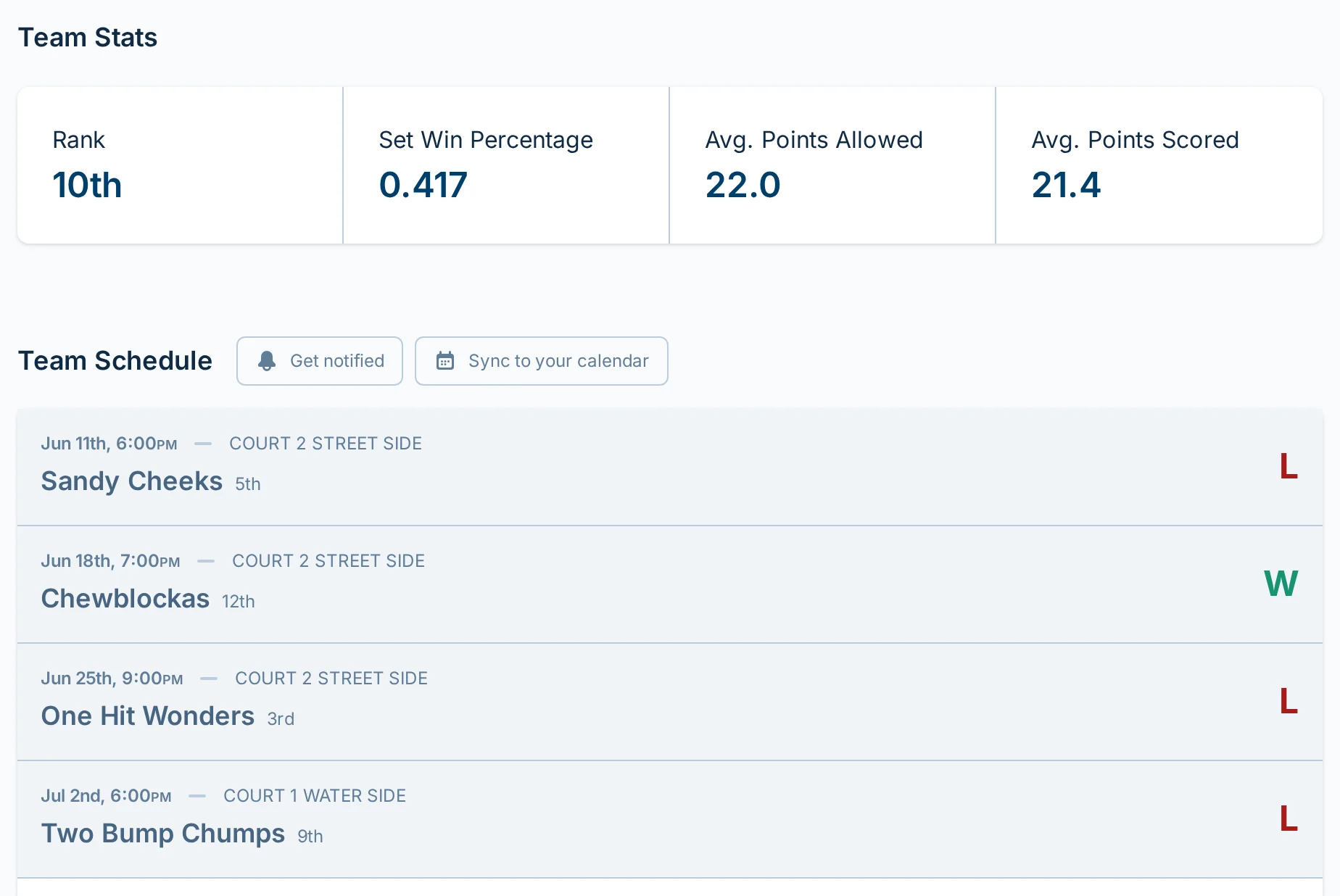
The Team Stats section summarizes where your team stands right now.

Team Stats can show:
- Rank — your team's current standings position.
- Win percentage for sets — your team's current win rate by set.
- Average points allowed — how many points your team allows on average.
- Average points scored — how many points your team scores on average.
Some leagues show overall record instead of average points. That happens when the league standings are based only on wins and losses.
When previous standings are available, the stats can also show how the number changed from the previous standings snapshot.
Team Schedule
The Team Schedule section lists the matches that involve your team.
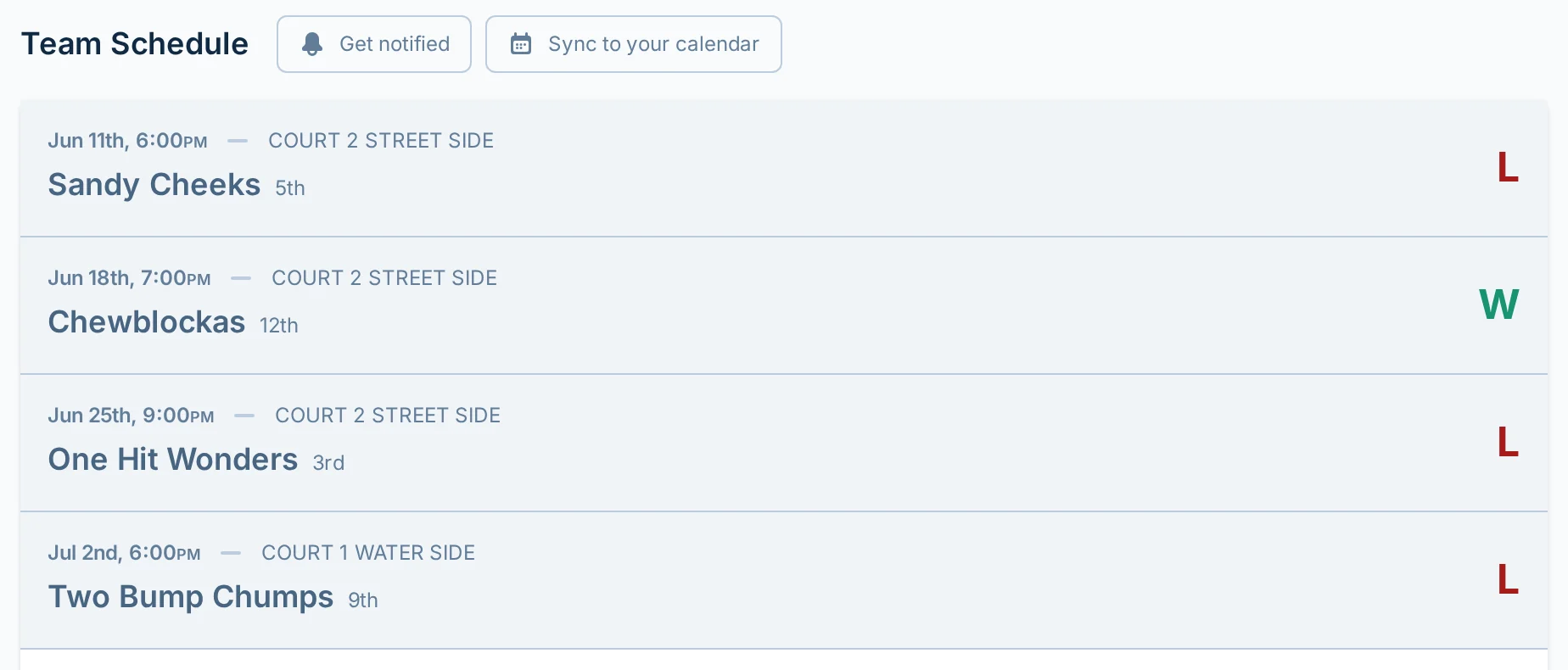
Each row can show:
- Date and start time.
- Court or location details.
- Opponent name.
- Opponent standings position.
- Result after the match is complete.
- "missing scores" if the result has not been saved.
- "canceled" if the match was canceled.
- "Playoffs" if the row is part of playoffs.
If your team has an assigned ref duty, the row is shown as Reffing and lists the teams involved.
Tap a row to open that match. From there, you can view details and report scores when score reporting is available.
Team Notifications
Use the notifications button in the Team Schedule section to turn on alerts for this team. On desktop, it says "Get notified" before you subscribe and "Notifications" after. On smaller screens, it says "Notify". These alerts can pop up on your phone or computer, even when volley.love is not open.
Turn it on if you want team updates on that device. Team notifications can include schedule updates, cancellations, forfeits, team changes, manager announcements, and score-reporting reminders.
After team notifications are on, you can also turn on Game day reminders from the Optional alerts section. Those reminders are off unless you turn them on.
Notifications are device-specific. Turning them on from your phone does not also turn them on from your laptop, and turning them off only removes notifications for the device you are using.
You do not need an account to use team notifications. On iPhone or iPad, you may need to add volley.love to your Home Screen before your browser can receive notifications.
Adding volley.love to Your Home Screen
If the notification dialog asks you to install volley.love to your Home Screen, use Safari on your iPhone or iPad:
- Open your team dashboard in Safari.
- Tap the Share button.
- Choose "Add to Home Screen".
- Tap "Add".
- Open volley.love from the new Home Screen icon, then use the notifications button again.
On Android, your browser may let you add volley.love to your Home Screen from the browser menu. Chrome usually shows this as "Add to Home screen".
Reporting Scores
To report scores from the team dashboard, tap the correct match row and fill in the score form.
If the form is locked, the match may not have started yet, the score may be past the reporting window, or the league may only allow staff to report scores. For more detail, see Report Scores.
Calendar Sync
Use "Sync to your calendar" to add your team's matches to a personal calendar.
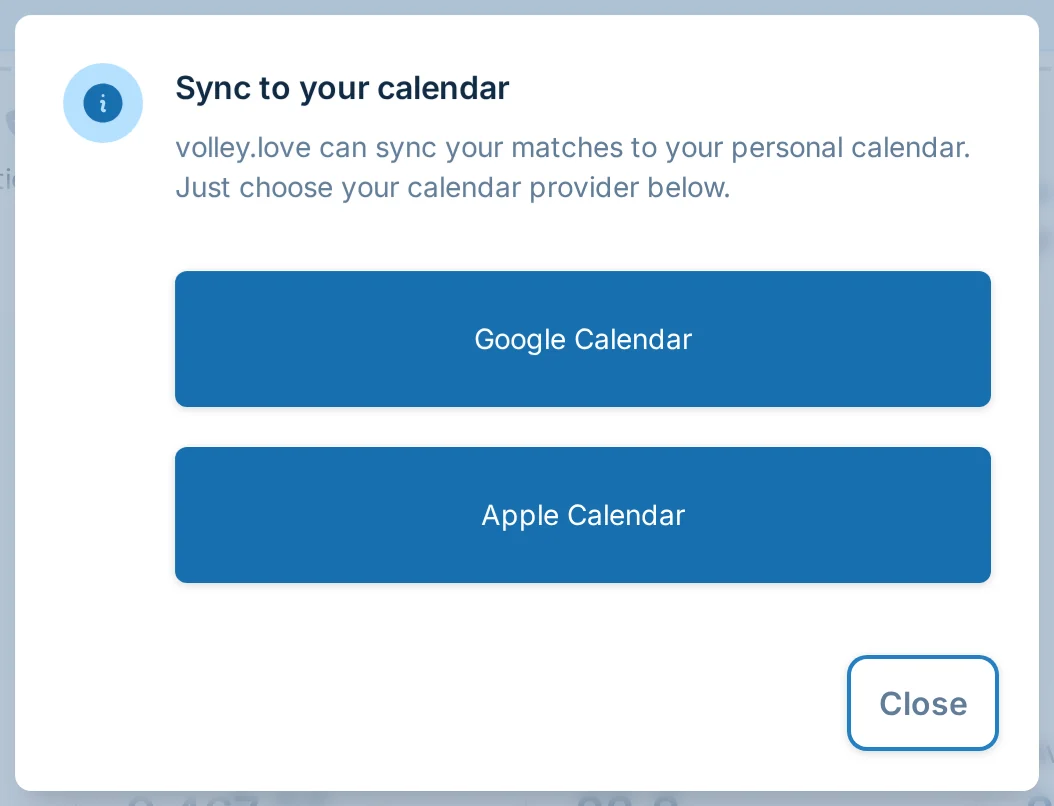
Choose Google Calendar or Apple Calendar from the dialog. The calendar subscription points at your team's current schedule, so schedule updates can flow into your calendar. Your calendar app controls how quickly those updates appear.
Playoffs And TBD Rows
Playoff rows may appear on the team dashboard once playoff matches are part of the schedule.
Sometimes a playoff row shows "TBD" instead of an opponent. That means the league knows when the playoff match is scheduled, but the team assignment is not final yet.
If the playoff schedule is not final, volley.love may show a note with a link to the bracket. For more detail, see Playoffs and Brackets.
KOB/QOB Ladder Schedules
In KOB/QOB ladder leagues, the team dashboard may only show the matches that are currently known for your team.
As earlier results are reported, new rows can appear on the dashboard. That is expected for KOB/QOB ladder play because future matchups depend on current ladder movement.
Common Questions
Do I need an account to open my team dashboard?
No. Players and captains do not need accounts to open the team dashboard.
Do I need an account to turn on team notifications?
No. Team notifications are tied to the device and browser where you turn them on, not to a player account.
Can I share the team dashboard with teammates?
Yes. Captains can share the dashboard link with teammates so everyone can view the team schedule, stats, and score reporting links.
Can I edit my team roster from the dashboard?
No. The dashboard is for schedules, scores, stats, and calendar sync. It is not a team roster or player account page. Ask your captain or league manager about team changes.
Can my team chat or RSVP from the dashboard?
No. Use whatever communication process your captain or league manager already uses for team chat, RSVPs, availability, and substitutes.
Why does a row say "missing scores"?
The match has not had a complete result saved yet. Tap the row to report scores if score reporting is available for that match.
Why did my calendar not update immediately?
Calendar subscriptions are refreshed by your calendar app. Updates usually appear automatically, but the timing depends on Google Calendar, Apple Calendar, or whichever app you use.
What should I do if my stats look wrong?
Check the underlying match scores first. If the saved scores look wrong or a result needs to be corrected, ask your league manager.